DayPrivate / Time blocking app
Mac, iPad, iPhone
A time blocking app for Mac that notices when the block did not hold.
Drawing the blocks is the easy half. Any Mac app with a calendar view can do that. The half that decides whether you are still blocking your days in March is what happens at 15:45, when the block is over, the work inside it is not, and the app says nothing. DayPrivate is time blocking software for Mac, iPad and iPhone built around that moment: block the day on a real grid around the meetings you already have, watch the running block from the Mac menu bar, and get one card when a block ends with a MUST still open. The whole outline is a file on your disk. If you are still comparing categories rather than blocking tools, start with the day planner app page instead.
The short answer
DayPrivate is a time blocking app for Mac, iPad and iPhone that blocks a day on a twenty four hour grid in half hour slots, snapping to fifteen minutes, around the Apple Calendar events you already have. Auto-block fills the day in one press and names what did not fit. On the Mac the running block and its elapsed time sit in the menu bar, and your blocks are mirrored back into a calendar you choose. When a block ends with a MUST still open, DayPrivate shows one card offering re-block today, tomorrow, or leave it, which is the moment almost every other blocking tool leaves silent. DayPrivate costs $8 a month or $69 a year, one plan with everything in it, and the outline lives in a local database file that syncs end to end encrypted through your own iCloud Drive.
Two things DayPrivate is not, before you read further. It is Mac, iPad and iPhone only, with no Windows build, no Android build and no browser version. And it is not publicly released yet, so today the form on this page is the only way in.
Definition
What time blocking software is, without the sermon.
Time blocking software takes the work you intend to do, gives each piece a span on a specific day, and then asks you to work the span instead of the list. That is the whole idea, and it takes about ten minutes a morning in DayPrivate or in any of the other apps in the category. Here is what those ten minutes buy and what they do not.
It makes the day finite
A list can hold twenty three things without complaint. A blocked day cannot, so you find out what will not fit before you promise it to somebody, instead of at six in the evening.
Ten minutes and some honesty
The ten minutes are the cheap part. The cost that actually stings is being told your estimate was wrong, every day, in writing, by something that kept the receipts.
It will not shrink the work
Nine hours of MUSTs is still nine hours after you draw the rectangles. Blocking makes the overcommitment visible at 08:40 rather than inevitable at 17:00. That is the win, and it is smaller than the roundups suggest.
The question under the question
Does time blocking actually work?
Time blocking works for as long as you keep making the decision it asks for, and most people stop making it in the third week. The drawing is not what fails. What fails is the afternoon a block ends with the work still open and nothing in the software says a word, so the plan and the day quietly stop being the same object. DayPrivate treats that as the feature rather than the footnote: one card at the end of a block with a MUST still in it, offering re-block today, tomorrow, or leave it, asked once, while you can still do something about it.
There is no percentage here, and there will not be one. DayPrivate has no study to point at and no user survey to quote, and the productivity numbers thrown around in roundups are marketing copy with a decimal point in them. What DayPrivate can tell you is what a blocked day exposes. Calibration puts the estimate you blocked with beside the time you actually tracked, so after two weeks the question stops being whether blocking works in general and becomes whether your thirty minute estimate for a ninety minute task was ever going to. That gap is measurable on your own days, which is the only place the answer was ever going to be found.
The honest failure case is the opposite one. If your work arrives as interrupts you cannot refuse, a support queue, an on call rotation, a toddler, then blocking a day in advance is a fiction generator and no software fixes that. Block the two hours you genuinely control and leave the rest of the grid empty.
The honest ledger
What are the downsides of time blocking?
Time blocking has five real downsides, and DayPrivate can only do something about two of them. It costs ten minutes every morning that you do not get back on a day that goes sideways. It turns a vague list into a promise about specific hours, which is uncomfortable on purpose. It breaks on interrupt driven work, where the next two hours belong to whoever pages you. It rewards optimistic estimates with a day that was always going to overrun. And it quietly stops describing reality the moment a block ends with the work unfinished and the app says nothing. The last two are the software's job: DayPrivate answers them with calibration that puts your estimates beside your tracked time, and one card at the end of a block that overran. The first three are yours, and no time blocking app fixes them.
Three of those five are not software problems, which is worth saying on a page trying to sell you software. If the first three describe your week, the ten minutes will not pay for themselves and DayPrivate is not the thing that changes it.
On the Mac
DayPrivate's time blocking on the Mac, and the four surfaces iPad and iPhone do not get.
The Mac is where DayPrivate's time blocking is fullest, because a Mac has surfaces a phone does not: a menu bar that can carry a running block, a global hotkey, and write access to a calendar you already keep. The same outline and the same grid are on all three devices. These four things are macOS only, and the reason is the platform rather than a paywall.
What is the best time blocking app for Mac?
The best time blocking app for Mac is the one that does something at 15:45, when the block is over and the work inside it is not. DayPrivate is built for that moment on macOS: the running block sits in the Mac menu bar with its elapsed time, your blocks are mirrored back into an Apple Calendar you choose from the Mac, Google Calendar is readable on the Mac, and one card appears when a block ends with a MUST still open. DayPrivate costs $8 a month or $69 a year, and it is not publicly released yet. If you need the same blocks on a Windows machine, on Android, or in a browser, DayPrivate has none of the three and a cross platform tool is the better call.
The four DayPrivate blocking surfaces that exist only on macOS
Do the App Store's top time blocking apps run on a Mac?
Worth checking before you shortlist, because this search returns App Store listings for apps that are not Mac apps. Compatibility lines below were read from the developers' own App Store pages on 6 September 2026, and they are the only claim DayPrivate makes about these products: no ratings, no verdicts, no feature comparison.
| Time blocking app | Mac | iPad | iPhone | Listed requirement |
|---|---|---|---|---|
| DayPrivate | Yes | Yes | Yes | Not on the App Store yet |
| TimeFinder | Yes | Yes | Yes | macOS 12.0 or later |
| TimeBloc | Not listed | Not listed | Yes | iOS 16.0 or later, iPhone only |
That is the whole point of adding "for Mac" to the search. Two of the results it returns are App Store listings, and only one of those two lists a Mac build, so a Mac user who picks the other one ends up planning the day on a phone. DayPrivate runs the same grid on all three devices, and if what you actually came looking for is the Mac app that kills a frozen process, that is a different kind of task manager for Mac and it is already installed on your machine.
Three designs, one word
The apps sold as time blocking software disagree about who draws the blocks.
Search the phrase and you get ranked roundups, two app store listings and a forum thread, all treating a dozen products as entries in one contest. They are not doing the same job. They split on one question: when the day gets blocked, who is deciding? Answer that first and the shortlist gets short.
What is the best app for time blocking?
There is no single best app for time blocking, because the four designs sold under that name do different jobs. Ask who decides when the day gets blocked. If you want to draw every block yourself, a calendar app is already enough. If you want software to rank your work and rebuild the day whenever something slips, pick an automatic scheduler. If you want to choose what today owes you and have the app lay that choice inside the hours you have left, then say something when a block ends with the work unfinished, that is DayPrivate, at $8 a month on Mac, iPad and iPhone. And if the blocks render but nothing happens when one ends, what you are holding is a to-do list with a calendar tab.
The four time blocking designs at a glance
● full · ◐ partial · ○ absent
| Capability | DayPrivate | Hand drawn on a calendar | The app decides the day | List with a calendar tab |
|---|---|---|---|---|
| Deciding and drawing the day | ||||
| You choose what today is about, not a priority score | ●full | ●full | ○absent | ●full |
| The whole day laid out in one press | ●full | ○absent | ●full | ○absent |
| Blocks only genuinely free hours, or books nothing | ●full | ●full | ●full | ◐partial |
| Every block carries an estimate you set before placing it | ●full | ○absent | ●full | ◐partial |
| The moment a block ends | ||||
| Says something when a block ends with the work still open | ●full | ○absent | ◐partial | ○absent |
| Tracked time laid over planned time on the same grid | ●full | ○absent | ◐partial | ○absent |
| Unfinished work carried forward by a decision, not silently | ●full | ○absent | ◐partial | ◐partial |
| Rearranges the rest of the day for you when something slips | ○absent | ○absent | ●full | ○absent |
| Reach and reality | ||||
| Runs on Windows, Android, or in a browser | ○absent | ●full | ●full | ●full |
| Blocks a team's time, with assignees and shared boards | ○absent | ◐partial | ●full | ●full |
| Plan stored in a file on your own disk, no account | ●full | ○absent | ○absent | ○absent |
| You can install it today | ○absent | ●full | ●full | ●full |
The three columns beside DayPrivate are design categories, not named products, and they are scored on how that design behaves rather than on hands on testing of any particular tool. Individual apps beat their own category all the time. DayPrivate's own column has four absences in it, and they are the four that send people elsewhere: no Windows or browser build, nothing for teams, no automatic reshuffle of the day, and nothing to install yet.
Different question from which kind of product you want overall. That one is laid out on the day planner app page, and if you have not settled software against a paper daily planner yet, start a step earlier. Blocking on paper works, right up to the first time a block has to move.
The routine
How to time block a day, in five moves.
What is the best time blocking method?
The best time blocking method is the one that counts your real free hours before it names any work: subtract the meetings, pick two or three outcomes rather than eleven tasks, estimate each one in writing, put the hard work in your best hours, and leave gaps between the blocks. Those five moves are what DayPrivate's grid is built to run, and they work in any app in the category, including a paper notebook. The order matters more than the tool, and steps one and three are the two that people skip and then blame the software for.
Count the hours you actually have
Look at what is already on the day. Meetings, the standing call, the school run. Subtract those from your day start and day end. What is left is the space you get, and it is nearly always smaller than the space you have been planning against.
Decide what the day owes you
Two or three outcomes, not eleven tasks. Block a list and you get a wall of small rectangles you will abandon by lunch. Block two outcomes and the day has a shape you can still recognise at four in the afternoon.
Estimate before you place
Put a number on every action while it is still text. Guess durations by dragging on the grid and everything fits, which is exactly how nine hours of work gets drawn inside seven hours of space.
Put the hard work in your best hours
Thinking work where your attention actually is, shallow work in what is left over. If the good hours go to email because email was at the top of the list, the ten minutes bought you nothing.
Leave the seams
Nobody moves from a client call into deep work in zero minutes. Set a gap between blocks. Without one, the first overrun shoves everything after it and the plan stops describing the day by about eleven.
In DayPrivate, steps two to five are one press. Auto-block runs the day in Actions or Outcomes mode and honours the gap you set. If naming a result and a purpose in step two sounds familiar, here is how DayPrivate builds the rapid planning method in.
Week three
The six common time blocking mistakes, and what software can do about each.
The rankings compare feature counts. These six are the mistakes that actually end the habit, and most of them are not fixed by having more views. Under each one is what DayPrivate does about it, including where the answer is a deliberate no.
The block ended and nothing happened
The most common one by a distance. The work slides, no decision is ever made, and by Thursday the grid is a picture of a day that did not occur. HereOne card when a block ends with a MUST still open, offering re-block today, tomorrow, or leave it. Dismissing it is itself a decision, so it never asks twice about the same ending.
The estimate was fiction, and stayed fiction
You block thirty minutes for a thing that has taken ninety every week for a year. Nothing in most apps has any opinion about that, so the same wrong number gets used again tomorrow. HereCalibration puts your estimates next to your tracked time, so the next number is closer. The Weekly report does the same at the level of a task, project, or area.
The plan ignored the meetings
A day blocked without your calendar in it is a wish list with timestamps. Worse is the app that cannot read your availability and books over it anyway. HereApple Calendar is read on all three devices and other people's events sit beside your blocks without counting toward planned or tracked time. If auto-block cannot read your free hours it books nothing and tells you, rather than scheduling blind.
You blocked the day, then worked off the list anyway
The grid gets drawn in the morning and never looked at again. There is no way to tell, because the plan and the record of what happened live in different places, if the record exists at all. HereTimers sit on the blocks themselves and only one runs at a time. The actual overlay lays what you really spent beside what you planned, on the same grid, so the gap between the two is a thing you can see rather than a feeling.
Yesterday's unfinished work quietly evaporates
Tomorrow opens clean and slightly false. What did not get done yesterday is either forgotten or silently absorbed, and either way nobody decided anything. HereA carry tray next morning offers yesterday's unfinished work forward, one day at a time, under the same outcome. Today keeps its own record of what actually happened.
The blocks got smaller until they were a to-do list again
Twelve twenty minute rectangles is not a blocked day, it is a list drawn sideways, and it fails for the same reason lists fail: no single span is long enough to finish anything in. HereBlock a whole outcome as one chunk, sized by the estimates still left inside it, then work the actions from inside that chunk. Nine to eleven is one thing you are in, not four errands stacked against a wall.
Whose day this shape suits
The work DayPrivate's time blocking software was built around.
Blocking software is not one job. A recruiter blocking call windows and a developer defending a four hour stretch want opposite things from the same grid. DayPrivate is built for the second kind of day, and these are the cases where that lands and where it does not.
Solo consultants and freelancers
Client work has a bill attached, so the gap between the two hours you blocked and the four you spent is the whole business. DayPrivate tracks against the block and reports by project or area, though it stops there: no rates, no invoices, no approvals.
Developers and writers defending long stretches
Blocking an outcome as one chunk, sized by the estimates still inside it, is the whole point here. Nine to eleven is one thing you are inside rather than four rectangles against a wall, and Focus mode on the Mac hides every panel except the outcome and its countdown.
Founders running a meeting heavy calendar
When most of the day is already spoken for, the only real question is what fits in the seams. Auto-block skips everything in your Apple Calendar, stops at your day end and names what did not fit, which is the difference between a plan and a wish list.
Anyone already using the rapid planning method
Naming a result and a purpose before the actions is the same first move DayPrivate asks for in step two. If that is your habit already, the rapid planning method app page shows how the outcome cards and the blocking grid meet.
Not built for: support, on call, and shift work
If the next two hours belong to whoever pages you, a blocked day is a fiction generator. Block the stretch you genuinely control and leave the rest of DayPrivate's grid empty, or use something queue shaped instead.
Not built for: managers scheduling other people
DayPrivate blocks one person's time on one person's devices. There are no assignees, no shared boards and no comments, and none of that is planned, so a team lead allocating capacity should look at project software rather than at this.
The grid itself
What DayPrivate's time blocking actually does, written out.
Blocks in DayPrivate are not a separate kind of object. They are ordinary bullets from your outline with hours attached, so they search, mirror, export and sync like everything else you have written.
Drawing a block
Getting work from the outline onto the clock.
Day and week grids
Twenty four hours in half hour slots, on both a single day and a full week, with fifteen minute snapping when you drag, move, or resize.
Drag from the outline
Pull any action onto the grid and the block takes the estimate already on it. Type a tilde on a bullet to set that estimate in the first place.
Outcome chunks
Block a whole outcome as one span with the clock button on its card, sized by the estimates still left inside it, then work the actions from within.
Auto-block
The whole day in one press. It starts at your day start, or at now rounded up when the day is already moving, skips what is blocked and everything in your calendar, leaves the gap you set, stops at your day end, and names what did not fit.
An Undo that means it
Auto-block's Undo removes exactly the blocks it made and leaves the ones you placed yourself alone, so one press is safe to try on a real day.
Block the gap
A dated goal that is behind gets a button that books the make up time in genuinely free hours next week rather than pretending the hours exist.
Day planner rail
Pin a single day beside the outline and drag bullets straight onto it, without leaving the document you are thinking in.
Templates
Save the shape of an outcome, its result, purpose and actions, and start tomorrow from it rather than from a blank page.
While the block runs
The part most blocking apps leave empty.
A timer on the block
Every bullet, plan row, and block big enough to hold the control has a play button. One timer runs at a time, so starting one pauses the other, and it survives a crash.
The now line
Between blocks it names the next MUST and the free window that would actually fit it, counting your meetings as well as your own blocks.
Focus mode
Every panel hidden and one outcome dressed for work: the result large, the block window and a live countdown, checkboxes and timers on the actions. It restores your layout exactly when you come out.
Menu bar timer
On the Mac the running task and its elapsed time sit in the menu bar, with pause, capture, and a quit that finishes the timer first.
Idle return
Step away while a timer runs and the app offers to trim the idle span rather than quietly counting the time you spent somewhere else.
Block and deadline alerts
A notification when a block starts and when a deadline lands, with the lead time you choose.
After it ends
Where the blocking either earns its ten minutes or does not.
The reckoning card
One card when a block ends with a MUST still open. Re-block today, tomorrow, or leave it, asked once, while you can still act on it.
The actual overlay
The time you really spent, laid beside the time you planned, on the same grid rather than in a separate report.
Carry unfinished
Next morning's tray moves what you did not finish forward one day at a time, under the same outcome, while today keeps its record.
Calibration
Your estimates against your tracked time, so the number you block with next week is closer than the one you blocked with last week.
Weekly report
Tracked against planned time per task and per project or area, by week or by calendar month, with nothing to fill in by hand.
Export
OPML, plain text, CSV, and a self contained HTML report. Your blocks and your tracked time leave in a form you can read without this app.
Your calendar
Blocking around the hours that are already spoken for.
Apple Calendar, read everywhere
Mac, iPad and iPhone all read the calendar you already keep, so a plan made on the phone knows about the meeting booked on the Mac.
Mirrored back on the Mac
Your blocks are written into a calendar you choose, and moving or deleting the event pulls the change back into the plan. This direction is macOS only, deliberately, to avoid duplicate events.
Google Calendar, read only
Mac only, connected with your own OAuth client. Sign in happens in your browser and the tokens sit in your keychain.
External events as context
Other people's meetings show beside your blocks in a muted style and never count toward your planned or tracked time. Their time is not your work.
Real availability, or nothing
Auto-block and Block the gap fill only free time, and abort rather than book over something they could not read.
Sync window
Choose how far ahead events are read and blocks are mirrored: thirty, ninety, or one hundred and eighty days.
Auto-block, one press, and what it says afterwards
An illustration, with fictional work in it. The part that matters is the last row: an app that quietly drops what will not fit is telling you the day worked out when it did not.
DayPrivate's time blocking, in two captures from the working build
Seventy five minutes of MUSTs are still open when the block runs out, so DayPrivate asks once: re-block today, tomorrow, or leave it. This is the moment the rest of this page is about, and it is a real capture rather than a mockup. The work in it is fictional.
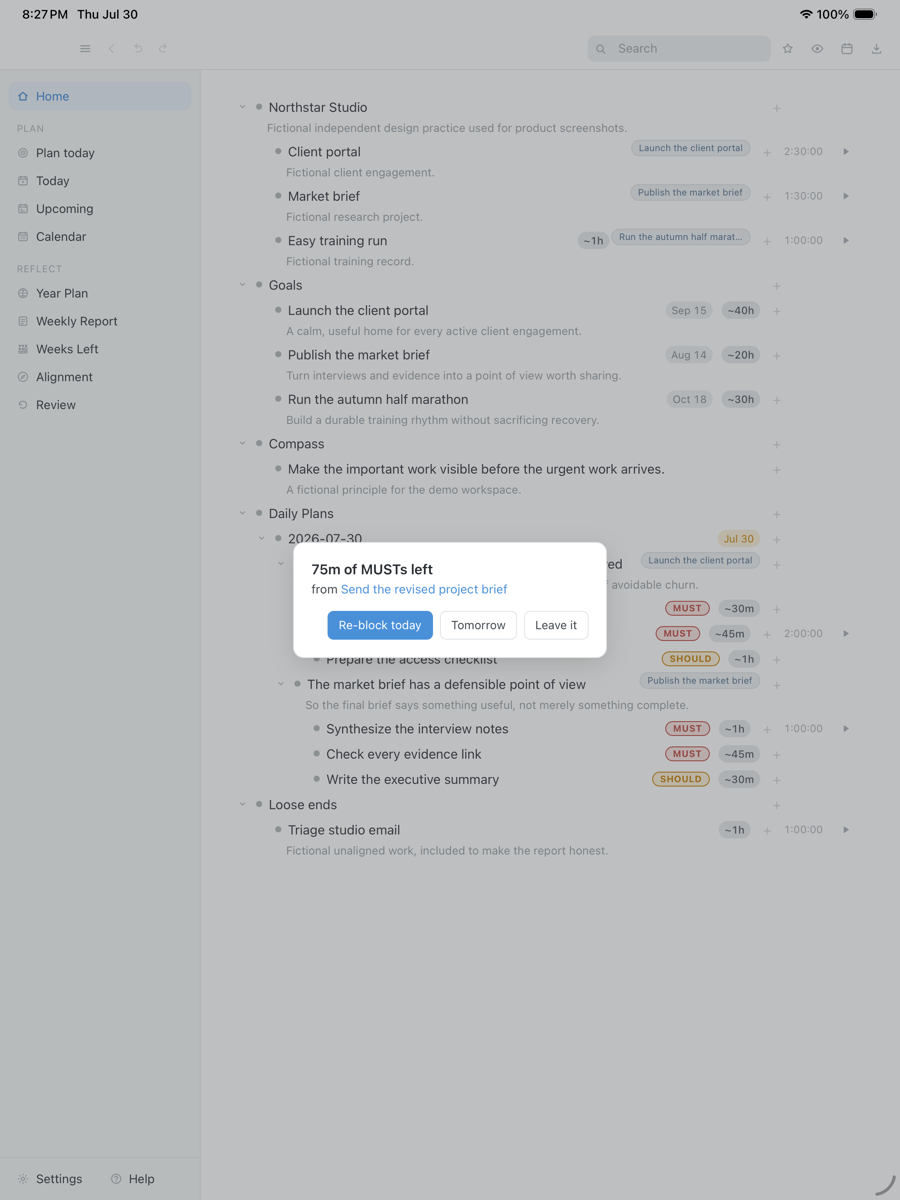
Drag the capture sideways to see the rest. Open full size
Thirty days of tracked time against your goals, with the hours that served no goal counted honestly at the bottom. A goal with nothing scheduled gets a Block the gap button that books the make up time in genuinely free hours, which is the only part of DayPrivate that schedules anything on your behalf.
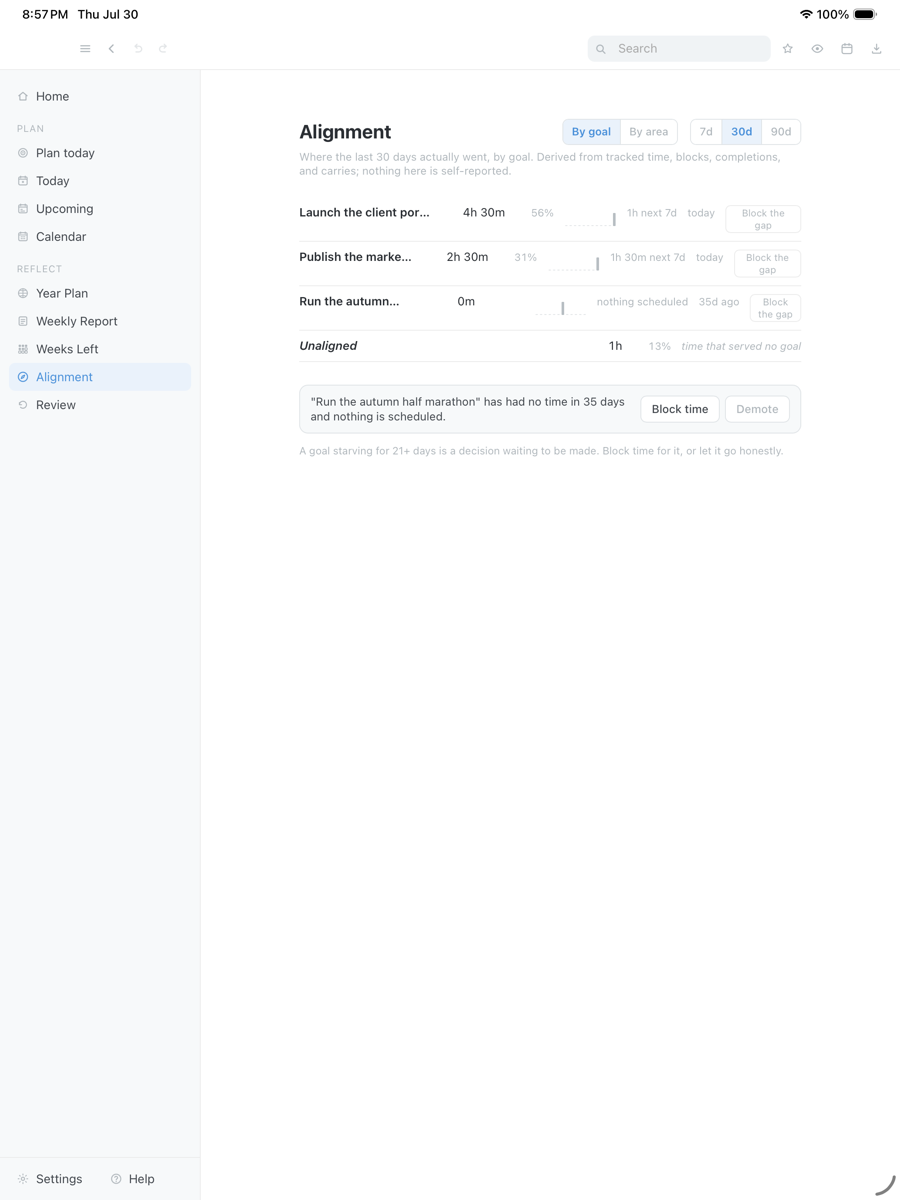
Drag the capture sideways to see the rest. Open full size
Both captures were taken on an iPad, from a build in daily use, seeded with fictional projects and goals. The Mac runs the same views.
Where the blocking runs
DayPrivate on three devices, one grid, and a short list of Mac only parts.
Every planner claims to be everywhere. This is DayPrivate's blocking half of the honest version: some surfaces are macOS only because they are native macOS surfaces, and the table says which.
| Blocking capability | Mac | iPad | iPhone |
|---|---|---|---|
| Day and week grids, drag, move, resize | Yes | Yes | Yes |
| Auto-block around your calendar | Yes | Yes | Yes |
| Timers on blocks, one at a time | Yes | Yes | Yes |
| Reckoning card and the carry tray | Yes | Yes | Yes |
| Read your Apple Calendar | Yes | Yes | Yes |
| Mirror blocks back into the calendar | Yes | Mac writes it | Mac writes it |
| Google Calendar | Yes | Not yet | Not yet |
| Menu bar timer and quick capture | Yes | macOS only | macOS only |
| Encrypted sync of blocks between devices | Yes | Yes | Yes |
That is the whole list. There is no Apple Watch app, no browser version, no Windows build and no Android build. Where your blocks are stored and what does not leave the device is covered in the privacy section of the overview.
Straight answers
When a different time blocking app is the better call.
- Your day happens on Windows or Android. DayPrivate is Mac, iPad and iPhone only, and there is no browser version planned. Nothing on this page will change that.
- You want the app to decide the day. Auto-block lays out a day you have already chosen. It will not rank your work from a priority score or work out what today is about on your behalf, and that is a design choice rather than a missing feature.
- You are blocking a team's time, not your own. No shared boards, no assignees, no comments, and none of it is planned.
- You need billable hours out the other end. Tracked time reports by task, project, and area. There are no client rates, no invoices and no approval flow.
- You want the blocks on your wrist. There is no watch app, so the day lives on a screen you sit in front of or carry in a pocket.
- You want to install something today. The build is in daily use and under active development, but it is not publicly released and it is not on the App Store yet.
Price
DayPrivate costs eight dollars a month, or sixty nine a year.
DayPrivate is one plan with everything in it, on every device you own, for one person. There is no team tier to be upsold to and no feature held back for a higher one. If the plan lapses, the last version you paid for keeps working and your blocks, your outline and your exports stay yours. See what the plan includes.
One message, then nothing
Hear when DayPrivate is ready.
One email when DayPrivate is ready to install, and nothing else. No drip sequence and no newsletter.
Your address is used for that one message and nothing else.
Questions
Time blocking software questions worth asking first.
What is time blocking software, in one sentence?
Time blocking software gives each piece of work a specific span on a specific day so you work the span instead of the list. The drawing takes a few minutes in DayPrivate or in anything else. The hard part is what you do when a block ends and the work inside it is not finished.
Does DayPrivate block the day for me automatically?
Auto-block lays out a day you have already chosen. One press fills it in Actions or Outcomes mode, starting at your day start or at now rounded up if the day is already moving, skipping what is blocked and everything already in your calendar, leaving the gap you set, stopping at your day end, and naming what did not fit. It will not rank your work or decide what today is about, and its Undo removes exactly the blocks it made.
Can DayPrivate block around meetings already in my calendar?
Yes. Apple Calendar is read on Mac, iPad and iPhone, and other people's events sit beside your blocks in a muted style that never counts toward planned or tracked time. Auto-block and Block the gap fill only genuinely free hours, and if they cannot read your availability they book nothing and say so rather than scheduling blind.
How small can a block be in DayPrivate?
The day and week grids run twenty four hours in half hour slots, and dragging, moving, or resizing snaps to fifteen minutes. A block too short to hold a play button simply does not show one.
What happens when I miss a block?
One card appears when a block ends with a MUST still open, while you can still act on it. It offers re-block today, tomorrow, or leave it, and dismissing it counts as a decision, so it never asks twice about the same ending. Between blocks a now line names the next MUST and the free window that would actually fit it.
Does DayPrivate track time as well as block it?
Yes, and both live on the same grid. Every bullet, plan row, and block big enough to hold the control has a play button, one timer runs at a time, and the actual overlay lays the time you really spent beside the time you planned. Step away while tracking and the app offers to trim the idle span rather than quietly counting it.
What is the best website for time blocking?
No website is the best answer if you want the plan to stay yours, because a browser tool keeps your day on somebody else's server by definition. DayPrivate is native software for macOS, iPadOS and iOS with no browser version at all, so the outline sits in a file on your own disk and syncs end to end encrypted through your own iCloud Drive. If opening your blocks from any machine you happen to be sitting at matters more than that, a calendar based web tool is the honest recommendation and DayPrivate is not it.
What is the best free website for time blocking?
There is no free website DayPrivate would point you at for time blocking, because free and browser based together mean your day sits on somebody else's server and is paid for by something other than you. If free is the constraint that matters, the honest free answer is the calendar you already have: Apple Calendar, Google Calendar or Outlook will block a day at no cost, they just say nothing when a block ends. DayPrivate is neither free nor a website. It is a native Mac, iPad and iPhone app at $8 a month or $69 a year, and the outline stays in a file on your own disk.
What is the best planner for time blocking, paper or an app?
Paper wins right up to the first time a block has to move, and then it loses badly, because shifting a two hour block on paper means redrawing the whole afternoon by hand. That is the single test worth applying: count how often your blocks move. DayPrivate's daily planner page compares paper, printable and app on that question, and this page is the software half of the answer.
Is there a Windows, Android, or web version?
No. DayPrivate is a native macOS, iPadOS and iOS app, there is no browser version, and there is no Apple Watch app. If your day happens on a PC or an Android phone, pick a different time blocking app.
Can I install DayPrivate today?
Not yet. The build is in daily use and under active development, but it is not publicly released and it is not on the App Store. The form above is how you hear when there is something to install. The product overview walks through the rest of the app.